
Installation & Configuration
CabGrid Tutorial
The video below shows how to install and configure the basic version of the CabGrid taxi fare price calculator plugin for WordPress. We’ll look at installing the plugin from the WordPress plugin directory, activating the CabGrid plugin, configuring the currency symbol and changing the message that accompanies prices. Then we’ll look at adding areas and specifying prices for journeys between each area. We will also cover customising the appearance of the calculator using the CSS styles section. Lastly, we’ll look at publishing the taxi price calculator on your WordPress website.
CabGrid Pro Tutorial
CabGrid version 6 has been released. We are busy making new tutorial videos for this. Whilst the videos below are still largely relevant, there will be some differences. Please stay tuned for new tutorial video and see posts in the support section at the bottom of this page.
The video below shows how to install and configure the CabGrid Pro plugin for WordPress – a simple A to B taxi fare price calculator. We will walk you through installing the plugin via the ‘Add New’ > ‘Upload Plugin’ feature, activating the plugin and access CabGrid Pro configuration settings. Then look at changing the currency symbol, increasing the number of areas and vehicles, and adding prices for each combination of areas and taxi vehicle. Lastly, we’ll look at publishing the price calculator on your site through the shortcode [cabGridPro]
Need a Hand?
More CabGrid Video Tutorials
Add your logo to taxi booking notification emails
How to add a logo or image to notification emails sent from CabGrid Pro or the CabGrid Booking Management add-on
Cash Payment Options
This article and accompanying video tutorial describe mechanisms for offering customers a cash payment option in CabGrid.
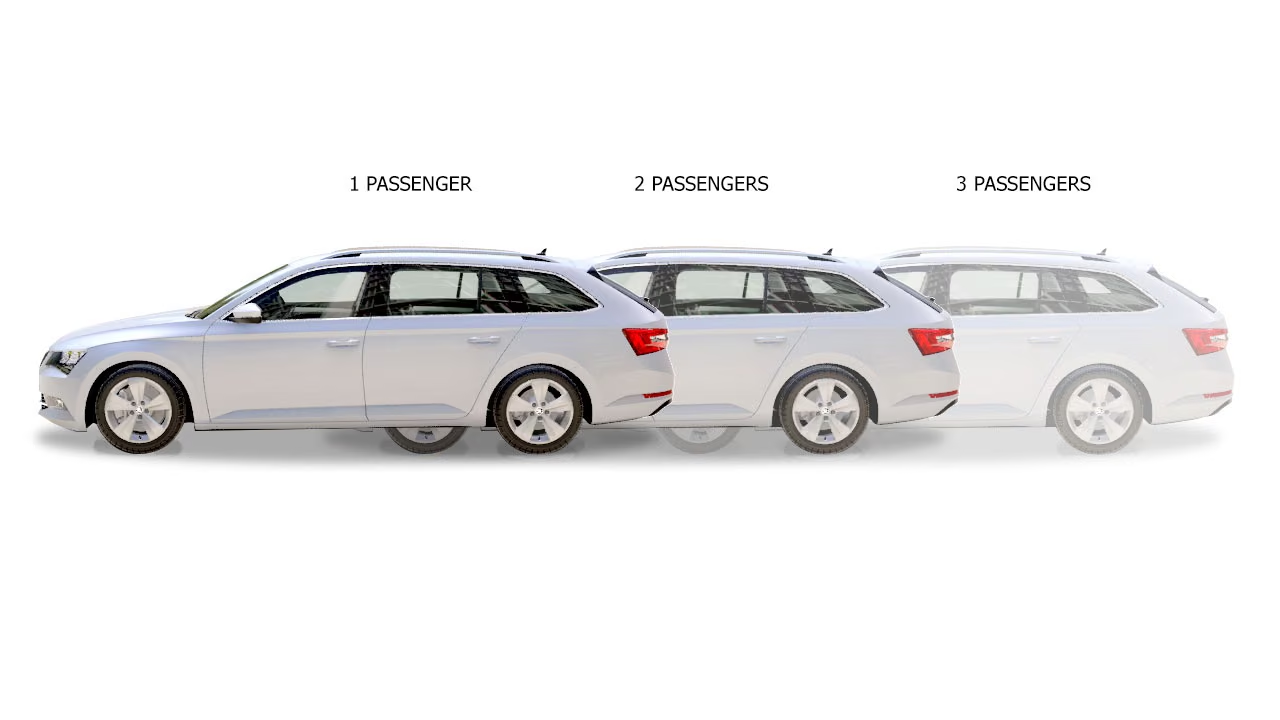
Adjusting Cab Grid Taxi Fare Prices Based on the Number of Passengers
This article explores ways taxi fare prices provided by Cab Grid may be adjusted based on the number of passengers, for example, when applying a surcharge for extra passengers or a discount for large groups.

Cab Grid is Built for Speed
Cab Grid passes Google Lighthouse performance audits with a perfect score of 100…. Google places significance on page speed and customers have limited patience loading websites. WordPress plugins and themes can slow load times if they’re not built with speed in mind. However, Cab Grid is built for speed….

Assigning Access to Cab Grid Admin in v5+
A WordPress website provides the ability for individual users to log in and perform actions on the site, such as commenting on posts or editing pages. Most websites will have only one user – the administrator – but others can be added (or registered). Any user can now…
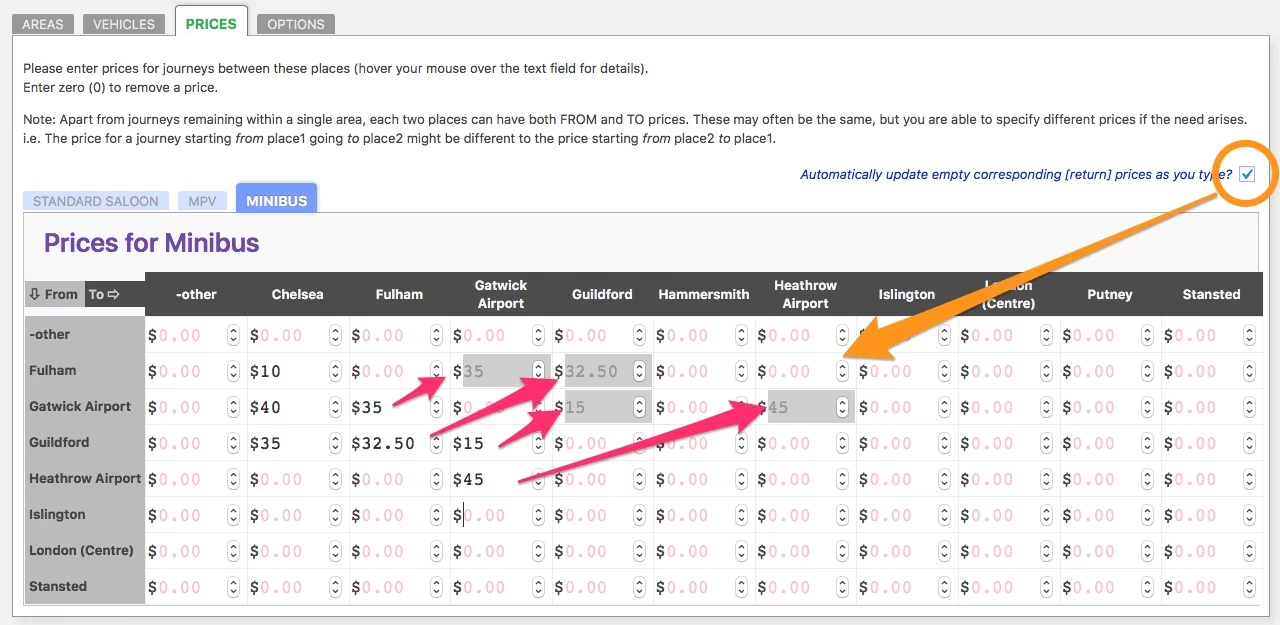
Auto-enter return prices
When the ‘Automatically update empty corresponding [return] prices as you type?’ box is ticked, the corresponding return (or opposite direction) price will be entered in the pricing table
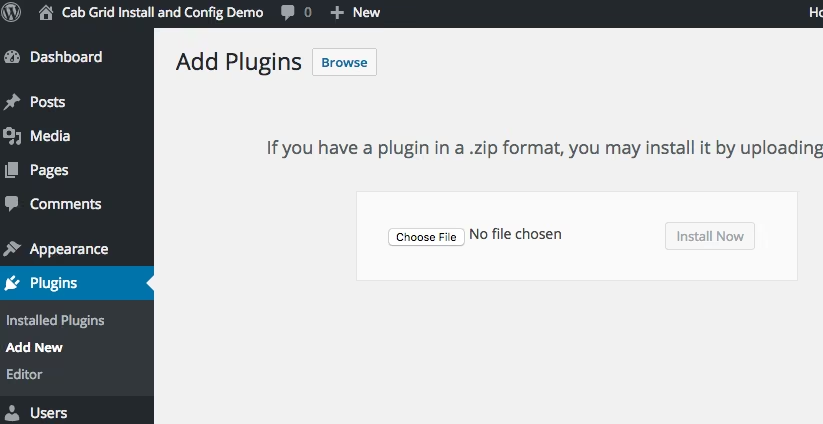
Updating Cab Grid Pro (version 2 – 4.0)
New versions of Cab Grid Pro taxi booking plugin for WordPress are distributed to license holders who must upload new files to their website. This can be done via FTP upload to the WordPress plugins directory or via the WordPress admin. This article describes how to use either method to update (upgrade) Cab Grid Pro to the latest version.

CabGrid Translations
We are looking for help translating Cab Grid into other languages. Please use the form on this page to get in touch if this is something you can do.
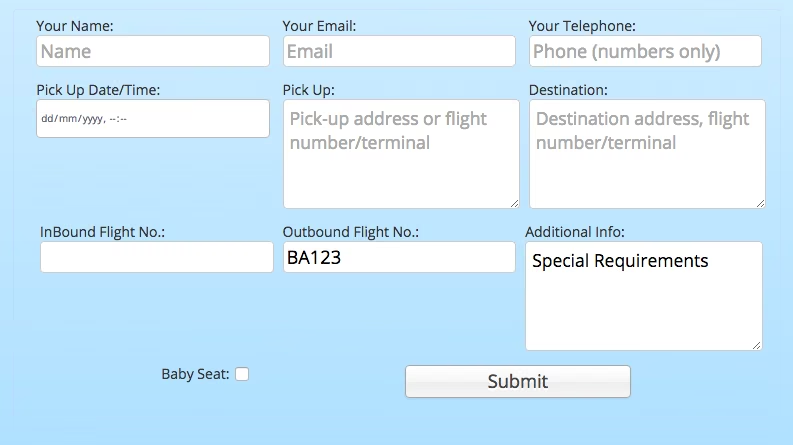
CabGrid Custom Booking Form Fields
Cab Grid Pro provides an online booking form that is displayed (optionally) after a price is calculated. This form contains a set of standard fields, but custom fields can be added to augment and personalise the booking form. Values entered in these form fields are included with the booking notification email.
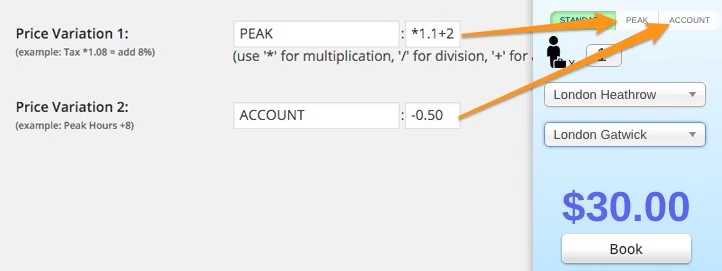
Price variations and formulae (peak/off-peak/special pricing)
How to configure price variations in the Cab Grid Pro taxi price calculator plugin for WordPress. Add up to two separate price calculations applied to your main price at the click of a button.

What is the Cab Grid WordPress Plugin?
Video tutorial showing installing the plugin from the WordPress plugin directory, activating the Cab Grid plugin, configuring the currency symbol and changing messages, adding areas and specifying prices, and publishing the taxi price calculator on your WordPress website

Cab Grid Pro v1 Install & Setup Video Tutorial
Video tutorial showing installing and configuring the initial version (v1) of the Cab Grid Pro price calculator and taxi booking plugin for WordPress.
Cab Grid Basic Edition Install & Setup Video Tutorial
Video tutorial showing installing the plugin from the WordPress plugin directory, activating the Cab Grid plugin, configuring the currency symbol and changing messages, adding areas and specifying prices, and publishing the taxi price calculator on your WordPress website
Latest CabGrid Pro Support Articles

CabGrid Pro 6 Licensing Guide
How do I find my license code? You can find and manage your CabGrid Pro licenses on your CabGrid account page. This includes your Licensed Email Address and Plan ID. My Licenses CabGrid v5 user? You can continue to use CabGrid version 5 and earlier on your site….

How to send a payment link with the booking acknowledgement message
Want to include a payment link in the booking acknowledgement email. There are number of ways you can construct a payment link and include it in the acknowledgement email. Here’s a couple of suggestions…
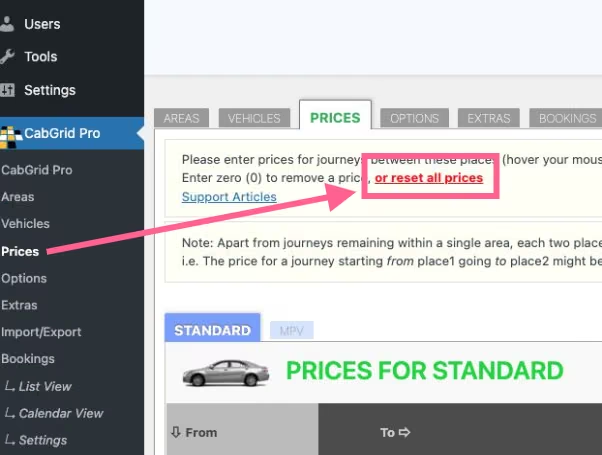
Reset all prices, places, vehicle or extras with one click
CabGrid Pro version 5.9.4 adds an option to reset all prices, places, vehicles and extras with one click.

Require Payment After Taxi Booking Submitted
Want to make payment mandatory when a customer submits a taxi booking request in CabGrid Pro? This is something occasionally requested by our users. Unfortunately, this is not directly possible. However, we have some suggestions…

Airport meet and greet name plate print out with your logo
The Nameplate feature is part of the CabGrid Booking Management Add-on. The NAMEPLATE button is located in the MANAGE column next to each booking. If the CabGrid Driver add-on is installed, a driver will receive a link to the nameplate page for that booking when…
Logo Image
The logo field in options allows a company logo to be specified. This is to be used in default/generic emails and other places across the system – such as the airport greeting card.

Booking Reference Seed
The Booking Reference Seed option allows you to define or adjust the booking reference assigned when a booking is requested.
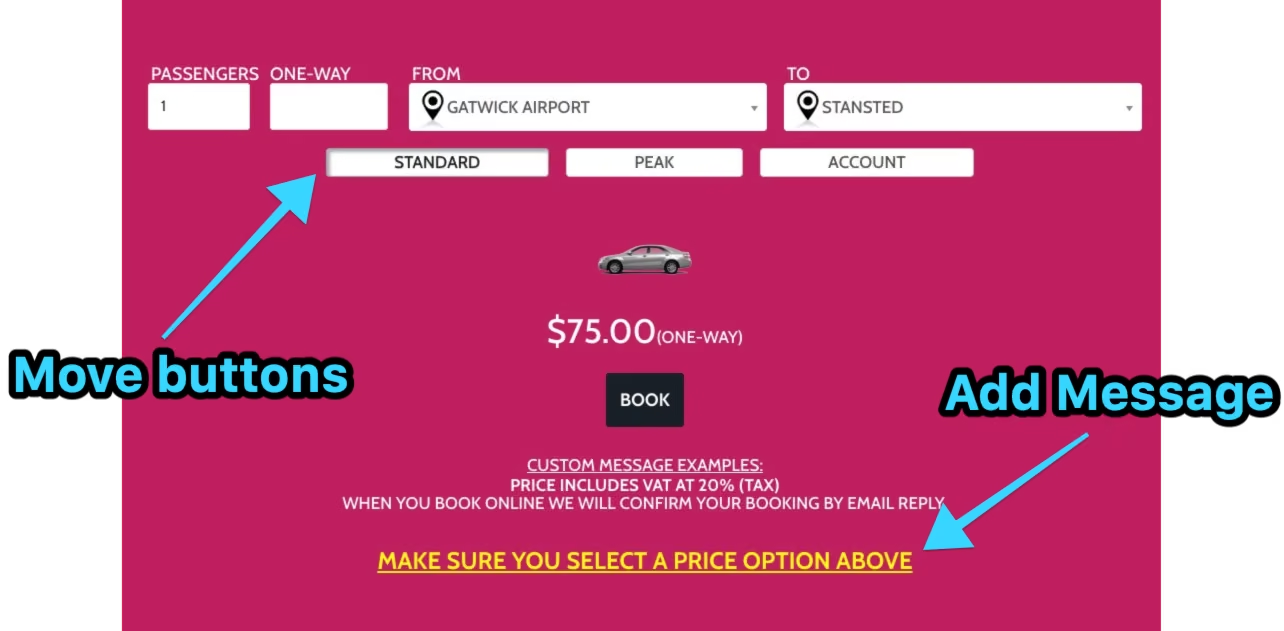
Highlighting Price Variation Options
Whilst CabGrid cannot currently automatically update the price based on booking form input, we have some recommendations for drawing your customer’s attention to the price variation buttons…
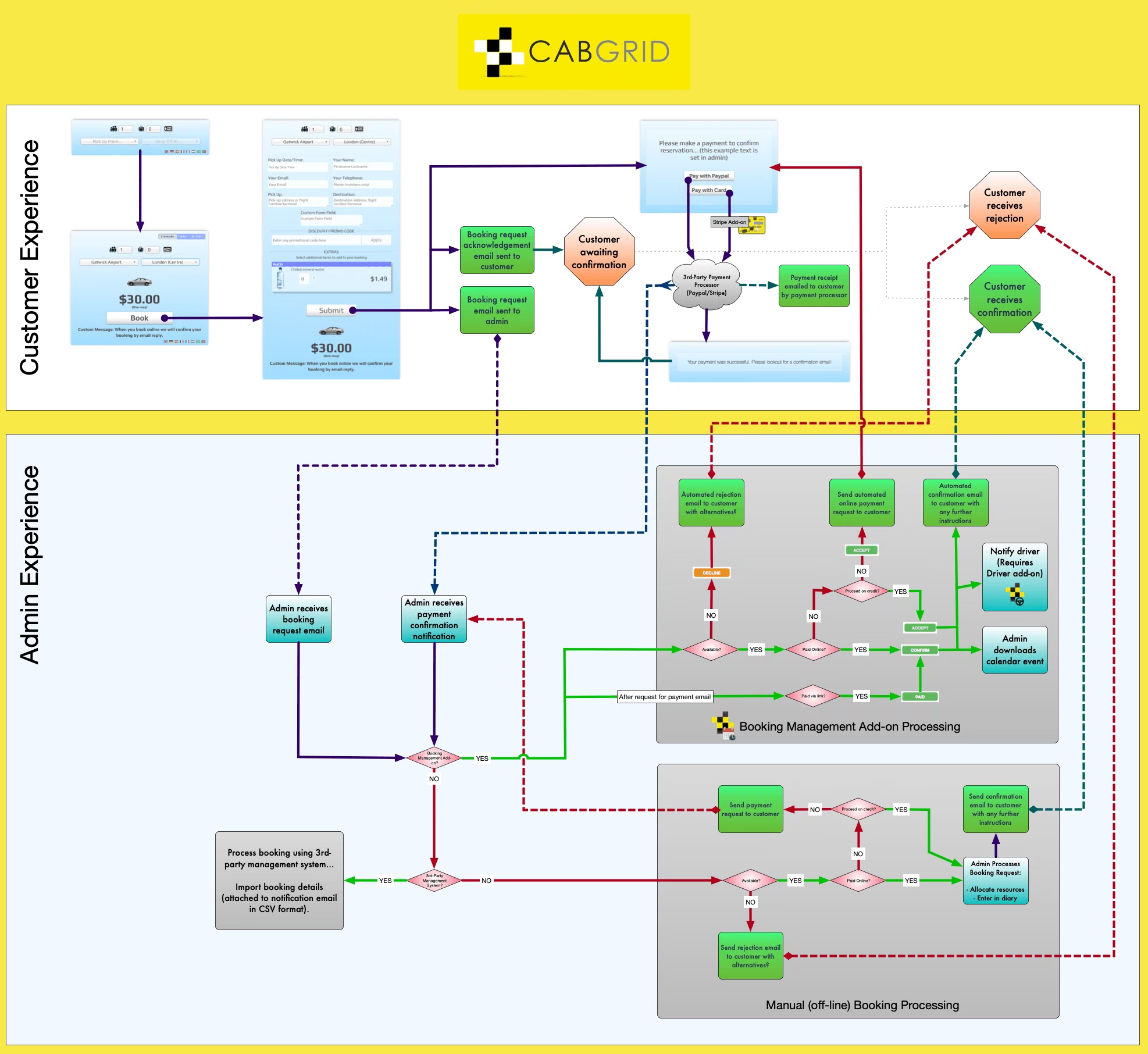
Automatically Accept CabGrid Booking Requests
The Booking Management add-on cannot automatically accept or confirm bookings. However, it is possible to give this illusion to your customer by re-wording the email and messages shown during the booking process…
Add your logo to taxi booking notification emails
How to add a logo or image to notification emails sent from CabGrid Pro or the CabGrid Booking Management add-on

Invoicing, Accounting and Bookkeeping with CabGrid
CabGrid features to help with accounting, bookkeeping and invoicing customers.

Booking form unexpectedly shows mandatory information missing
Problem: when trying to summit a booking, the message “Mandatory information missing or invalid. Invalid fields have been highlighted.” always appears, even when all required fields are completed.