
CabGrid can operate as a stand-alone solution. It has PayPal built-in to process booking payments. We offer various add-ons that enhance functionality. WooCommerce is not a requirement unless you want to use WooCommerce to process orders or payments. Other add-ons such as the Booking Management add-on or the Stripe add-on provide similar functionality. Read our WooCommerce discussion for more information.
Get the WooCommerce Add-onThis add-on allows you to process payments through WooCommerce payment gateways. You’ll need to set up WooCommerce separately to manage payments and orders for your business.
With this add-on, customers can:
- Use the CabGrid interface to calculate prices and enter booking details as usual.
- Click a checkout button to add their journey to the WooCommerce cart.
- Proceed to the WooCommerce checkout page to make a payment.
Setup Steps:
1. Install WooCommerce
- Go to PLUGINS > ADD NEW PLUGIN in your WordPress admin.
- Search for ‘WooCommerce‘.
- Click ‘Install Now‘, then ‘Activate‘.
- Complete the setup wizard if prompted.
1b. Install a Payment Gateway
- Install and configure the payment processing provider of your choice. (e.g. Stripe or WooPayments) Refer to their documentation for configuration instructions.
2. Create a WooCommerce Product
- Go to PRODUCTS > ADD NEW.
- Enter a title (e.g., ‘CabGrid Booking‘ or ‘Taxi Ride‘).
- Add a brief description (e.g., ‘Taxi booking with [your company name]‘).
- Under ‘Product Data’:
- Select ‘Simple Product‘.
- Check the ‘Virtual‘ box.
- Set a low price (e.g. 0.01) to avoid any discount messages showing on the checkout page.
- In the ‘Inventory’ section, set “Sold individually” to “Limit purchases to 1 item per order“.
- Click ‘PUBLISH’.
3. Configure CabGrid
- Install the CabGrid WooCommerce add-on plugin:
- Upload the unzipped plugin folder to your wp-content/plugins directory on your server via FTP, or;
- From your WordPress admin go to Plugins > Add New > Upload Plugin
- Click ‘Choose file’ and browse to the plugin ZIP file on your computer.
- Click ‘Install Now’ and then click ‘ACTIVATE’
- (or go to Plugins > Installed Plugins, find ‘CabGrid WooCommerce Integration’ and click ACTIVATE.)
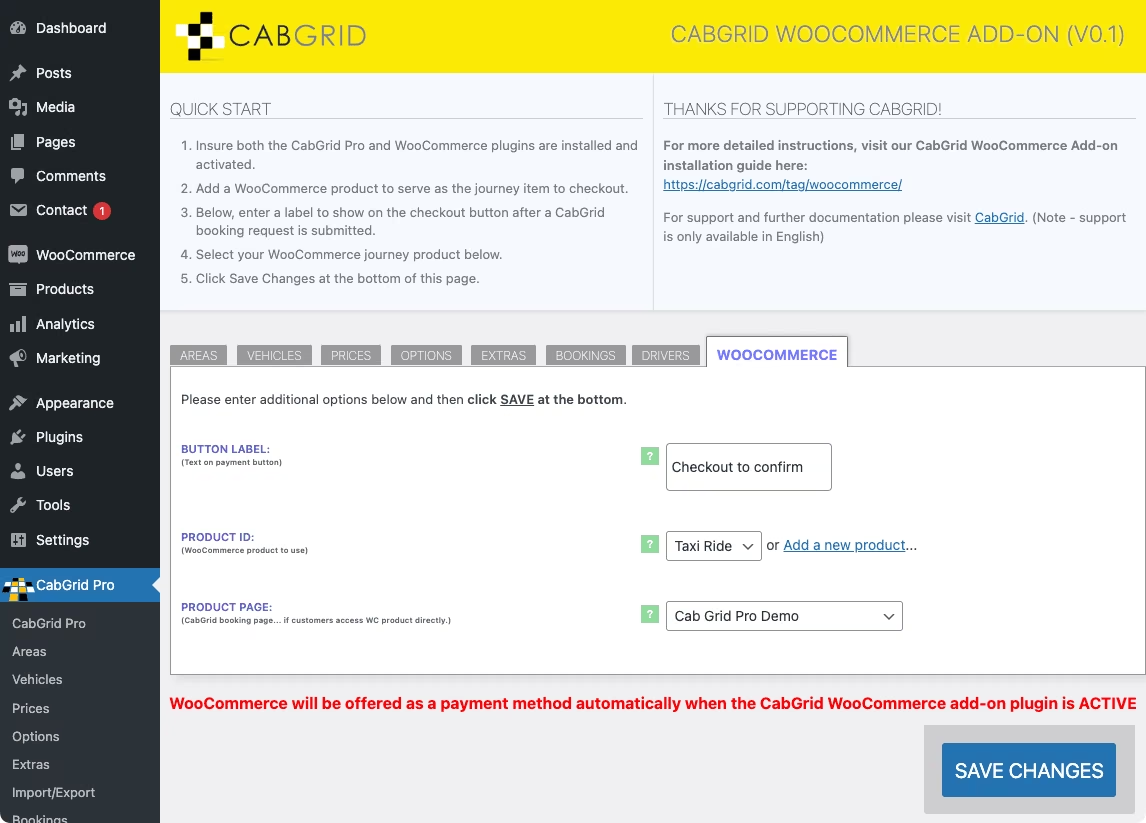
- Go to CabGrid Pro > WooCommerce in your WordPress admin.
- Enter a button label (e.g., ‘Checkout now to complete your booking’).
- Select your newly created product from the ‘Product ID’ dropdown.
- Choose the page with your [cabGridPro] shortcode from the ‘Product Page’ dropdown.
- Click ‘Save Changes’.
 4. Test Your Setup

- Make a test booking to check if everything works correctly.
- CabGrid will send notifications to you and the customer as you have configured them.
- You’ll find booking details for individual orders in your WordPress admin under WooCommerce > ORDERS.
- Process bookings according to your business procedures.
Note for CabGrid Pro Booking Management users: Bookings made through WooCommerce will be automatically marked as PAID. Manage these bookings as you normally would.
Get the WooCommerce Add-on